

Upon entering the workforce, I quickly realized the power of automation and speed in IT administration. Despite limited exposure to PowerShell during my studies, I seized the opportunity to enhance my skills through the Storm Winds training platform.
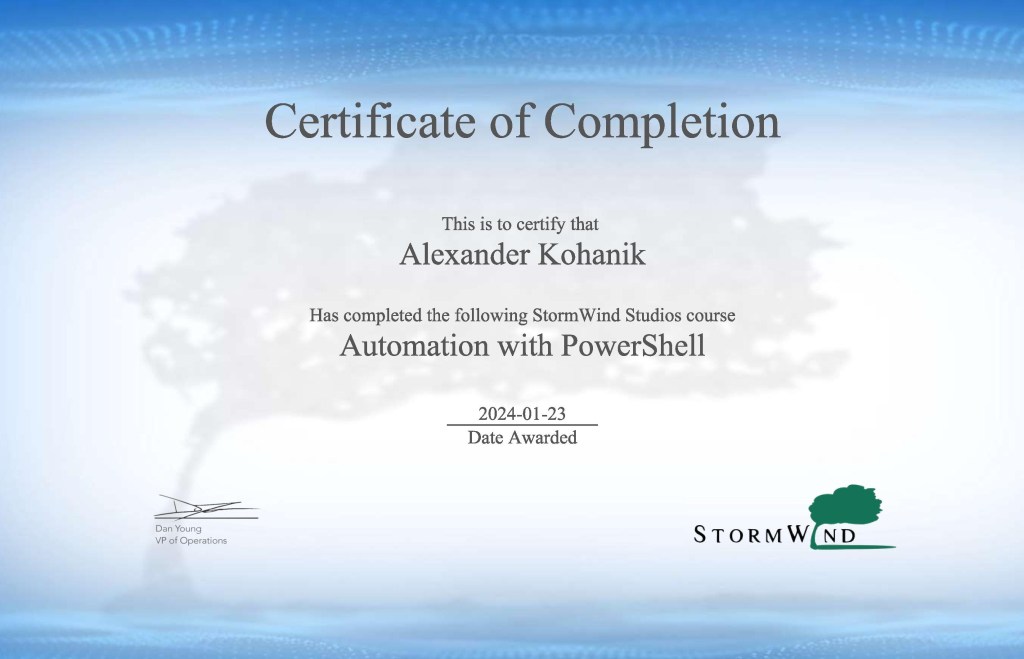
Last month, I completed courses in PowerShell scripting and Automation with PowerShell, further enhancing my efficiency in problem-solving.
Since then, I’ve utilized PowerShell to expedite tasks. For instance, silently resolving helpdesk tickets without bothering end-users, simply providing a notification upon resolution. Additionally, I’ve efficiently orchestrated projects via PowerShell such as auditing SMB shares and restricting access as necessary. All the way to rapidly removing hidden rules using Exchange modules in the event of a Huntress detection.
I am proud to share my certificates of completion and eager to continue leveraging PowerShell to revolutionize workflows, save time, and boost team efficiency!
This month, I spent my free time neatly organizing my efficient PowerShell scripts onto my GitHub to share with everyone. Let’s check some of them out…, you can also view the entire repository here!
Common scripts
Understanding PowerShell Automation Fundamentals
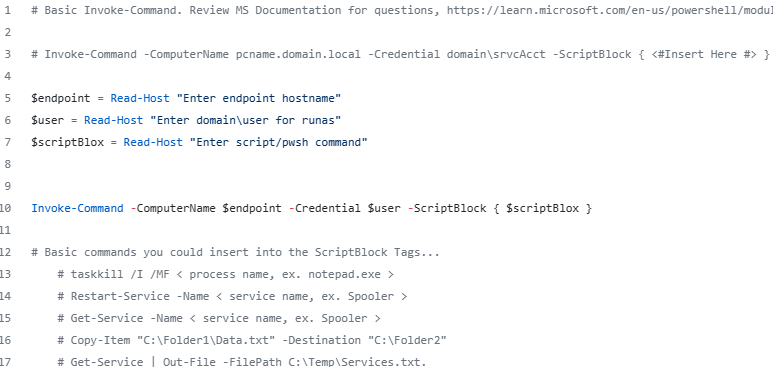
In the realm of PowerShell automation, mastering the fundamentals is essential. One crucial concept is Remote code execution on Endpoints. Essentially, remotely executing a command allows you to execute scripts remotely, granting you the power to manage systems as if you were physically present. This capability is pivotal in automation endeavors.
To illustrate, consider the versatile cmdlet Invoke-Command. It enables seamless execution of PowerShell commands on remote machines, streamlining administrative tasks.
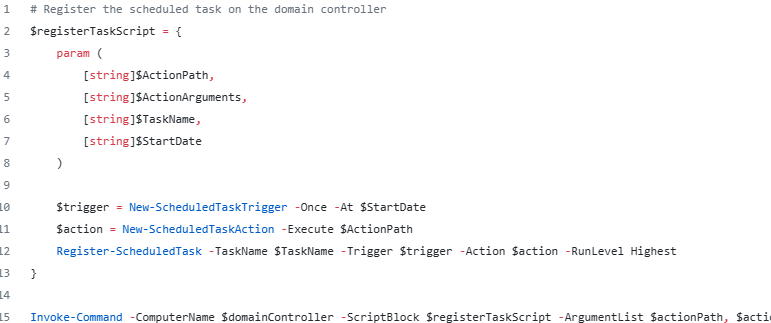
Furthermore, we can leverage a potent administrative tool, Task Scheduler, alongside Invoke-Command. This combination lays the groundwork for automating tasks. For instance, in the snippet below, we demonstrate scheduling a task on a domain controller, a vital function that we’ll dive into further later on.
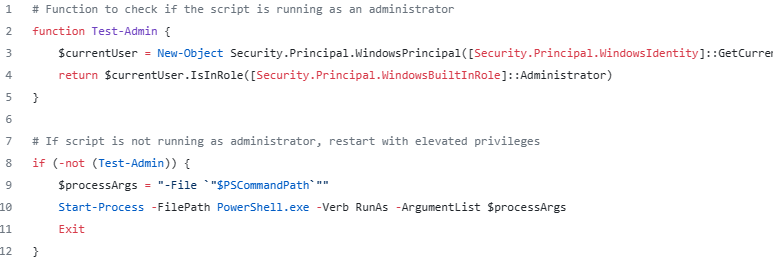
Lastly, it is crucial to note a key distinction from traditional batch scripts: PowerShell scripts cannot be right-clicked and run with elevated privileges. Thus, it’s imperative to incorporate logic within scripts to ensure they execute with the necessary permissions. The following script showcases a method to verify administrator privileges and relaunch the script with elevated permissions if required.
Administration scripts
Empowering Administrative Tasks with PowerShell
In addition to its foundational capabilities, PowerShell empowers administrators with a plethora of tools for efficient task management. Let’s explore some life-saving functionalities:
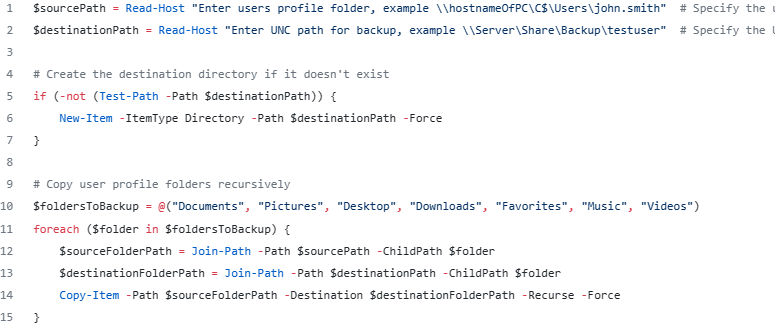
Backup Automation: Imagine the convenience of backing up critical data to a network location with the simple click of a PowerShell script. The below lightweight script employs Copy-Item and Test-Path to facilitate seamless directory backup. It prompts for user-input, via Read-Host, which allows for on-the-fly input of directory paths, ensuring quick and efficient file transfers.
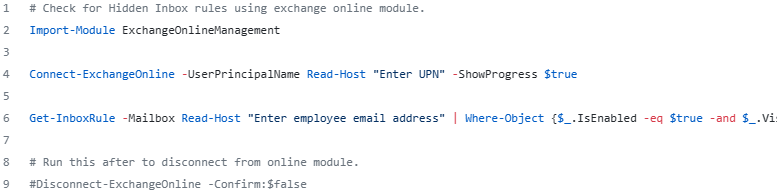
Email Security Enhancement: In this era many are plagued by email compromise. Ensuring the integrity of email inboxes is paramount. PowerShell equips administrators with the tools to mitigate threats efficiently. With a basic three-line script, one can connect to the Exchange Online module and use Get-InboxRule to uncover hidden inbox rules. Later on, discover how we can automate this process to monitor and detect new rule creations effectively.
Active Directory scripts
Leveraging PowerShell for On-Premises Active Directory Management
While PowerShell excels in connecting to online modules and interacting with cloud services, its capabilities extend seamlessly to on-premises management, particularly in Active Directory environments. These lightweight scripts demonstrate how PowerShell facilitates querying, adding, modifying, and interacting with Active Directory objects, empowering administrators in automating tasks.
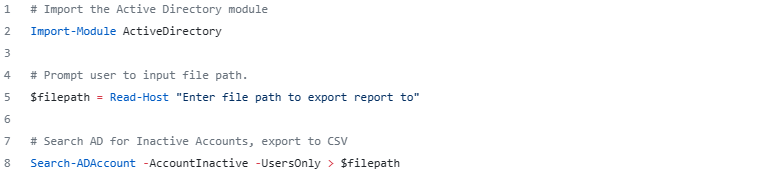
Automated User Account Audit: In this simple script, one can audit and monitor on-premises Active Directory environments efficiently. By importing the Active Directory module and leveraging the Search-ADAccount cmdlet, we can pass parameters to identify inactive user accounts. This allows one to proactively manage offboarding processes and ensure the security of guest accounts by revoking access when necessary.
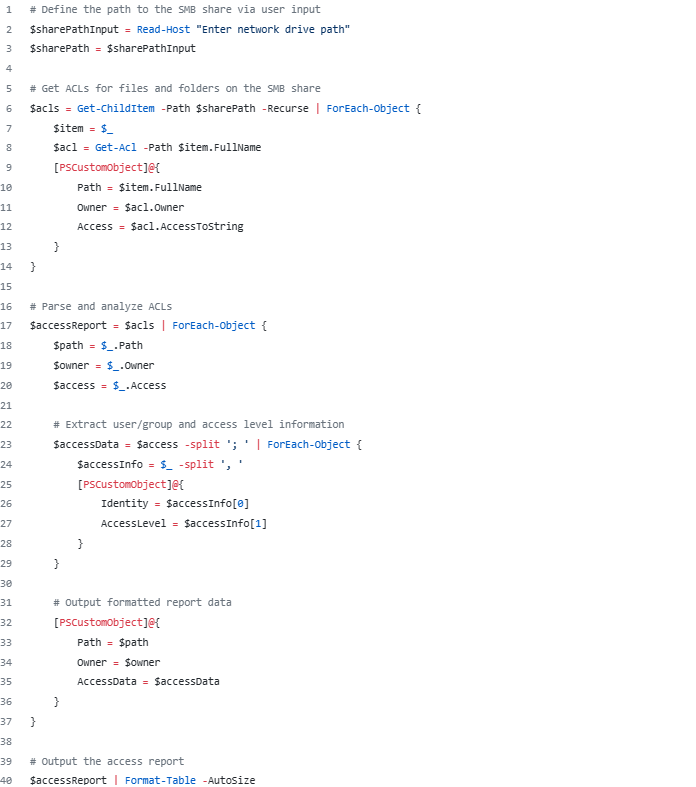
Access Control Auditing and Management: In fast paced work environments, maintaining security integrity is critical. This script showcases how PowerShell can be used to query access control lists (ACLs) on SMB shares, facilitating auditing to verify proper access permissions. This could be paired with another script, such as revoking access or adjusting permissions to mitigate security risks effectively.
Dynamic User Provisioning with GUI Integration: This final AD script offers a glimpse into a recent project. Where I utilized PowerShell to streamline the user provisioning processes. In this example, I demonstrate the generation of a script to then manage user account attributes and schedule tasks on a domain controller. This automation ensures seamless onboarding processes for new employees, eliminating manual configuration steps and enforcing password security policies effectively.
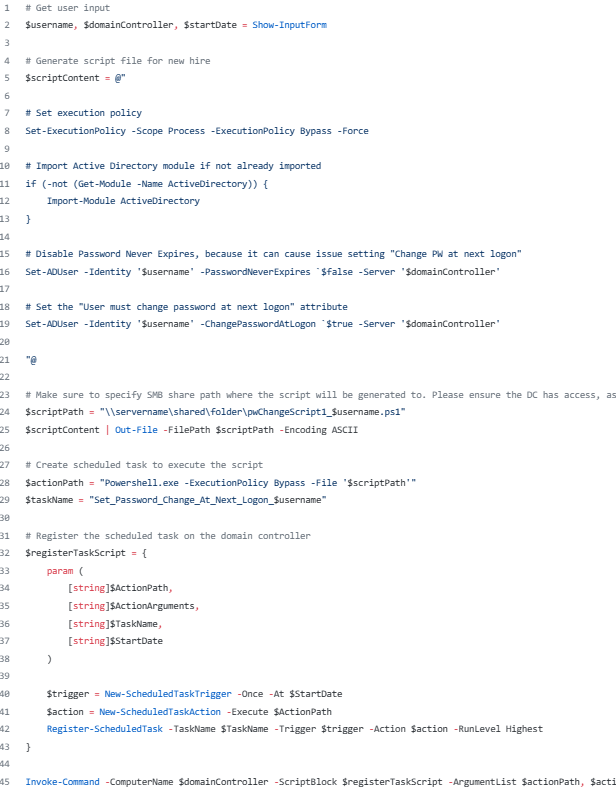
The graphical user interface (GUI)/Form collects three crucial variables: a date, a username, and the domain controller. Once these variables are provided, the script generates an additional PowerShell script, saving it to a predetermined SMB share path.
This generated script is designed to execute actions on the Active Directory user account associated with the provided username. Specifically, it sets two important attributes: PasswordNeverExpires is set to false, ensuring that passwords will expire according to organizational policies, and ChangePasswordAtLogon is set to true, enforcing a password change requirement upon the user’s next login.
To automate this process further, a task is registered on the specified domain controller to execute the generated script once on the provided date. This automation ensures that when setting up a laptop for a new employee, the administrator can use a temporary password for initial login and configuration. Then, without any user interaction, the system prompts the new employee or the next user to change their password upon their first login. This approach eliminates the risk of forgetting to enable password expiration settings manually in Active Directory user properties and ensures compliance with password security policies without relying on user intervention.
For a comprehensive understanding and access to the complete scripts, refer to the GitHub repository linked here.

 Kohanik Secure