

Microsoft’s platforms are often at the forefront of both innovation and scrutiny. New vulnerabilities, such as Remote Code Execution (RCE) flaws in Windows, continue to surface, and while these challenges are real, they do not overshadow the strides Microsoft has made to enhance security for its customers.
The reality is that the global reliance on Microsoft systems, from government infrastructure to everyday small business operations, places immense pressure on the company to maintain security at the highest level. The recent audit by the Cyber Safety Review Board (CSRB), which highlighted significant areas for improvement, serves as a wake-up call for both Microsoft and the organizations that depend on its technologies. However, it’s important to acknowledge that Microsoft has taken significant steps forward, especially in making advanced security tools more accessible.
One such tool is Microsoft’s Conditional Access, a feature that has become indispensable for IT security personnel managing Microsoft 365 environments. Conditional Access allows organizations to enforce policies that control access to corporate resources based on specific conditions, such as user location, device compliance, and sign-in risk. This is particularly valuable in mitigating threats like phishing, where human error remains a significant vulnerability.
Why Conditional Access is Essential
Conditional Access offers a flexible and powerful way to enforce security policies without disrupting user productivity. By defining conditions under which access is granted, you can ensure that only compliant devices and users can access sensitive data, significantly reducing the risk of unauthorized access.
For example, Conditional Access can be configured to enforce Multi-Factor Authentication (MFA) for sign-ins from unfamiliar locations or devices. This helps to prevent attackers from gaining access to your network even if they have compromised user credentials.
Step-by-Step Guide: Limiting Logins to Specific Countries
One of the most simple yet effective uses of Conditional Access is to restrict user logins to specific geographical regions. This is particularly useful for organizations that operate within defined geographical boundaries and want to prevent unauthorized access from foreign locations.
Here’s how you can set up a Conditional Access policy to limit logins to specific countries using Microsoft Entra Conditional Access:
- Sign in to the Microsoft Entra admin center. (Note: You must have Conditional Access Administrator rights to continue)
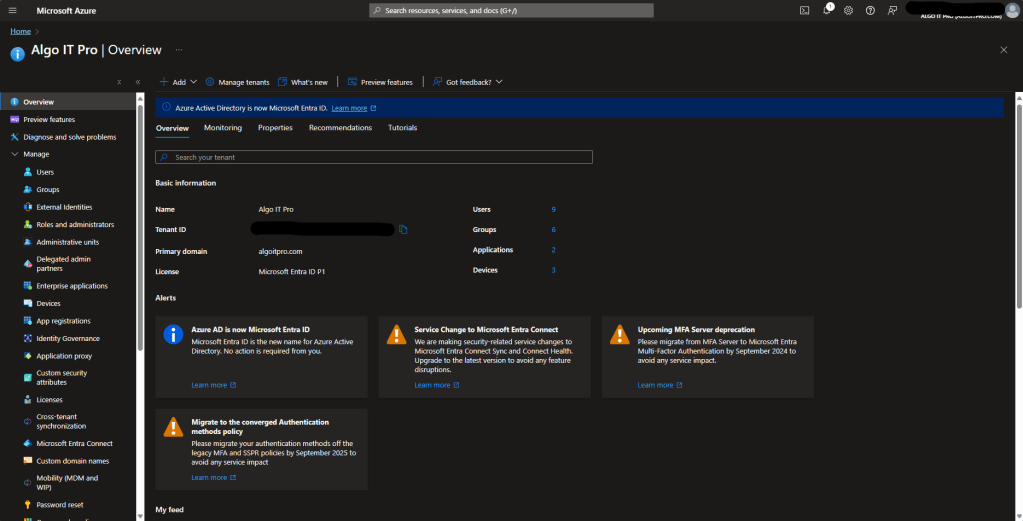
- Navigate to Security > Protect > Conditional Access > Named locations.
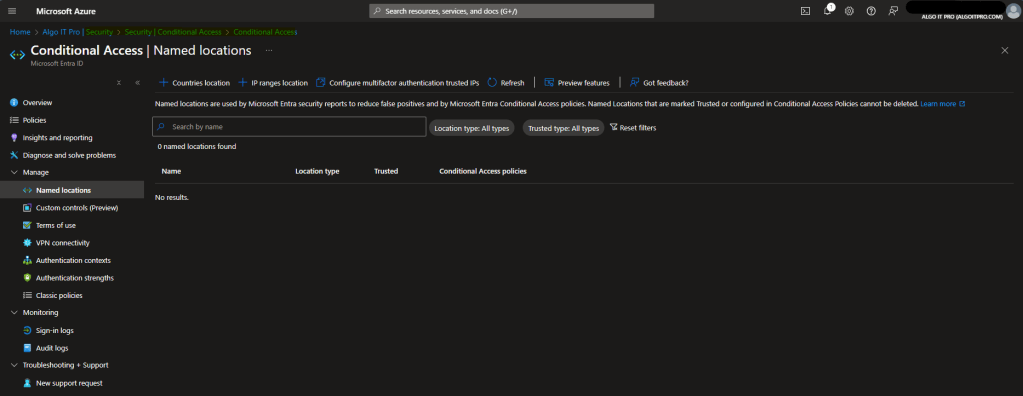
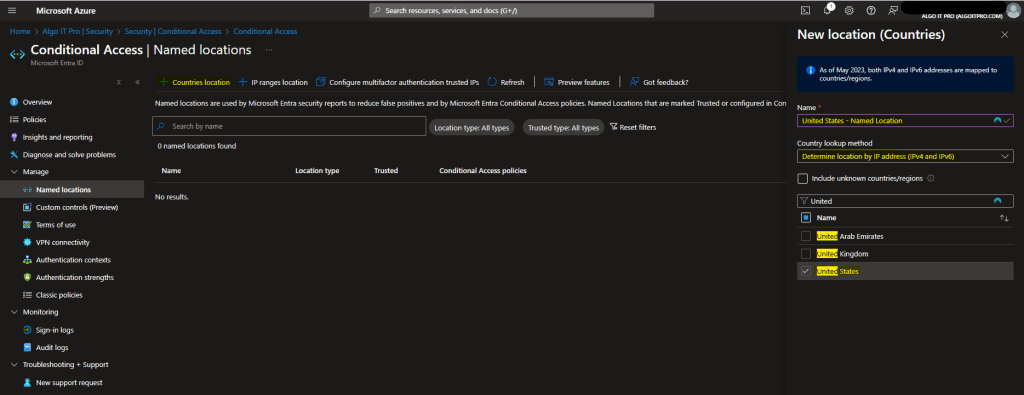
- Select Countries location.
- Name the location according to your preference (e.g., “Allowed Countries or USA Region Only”).
- Country lookup method: Determine location by IP address (IPv4 and IPv6)
- Select the Countries/Regions you want to include for the allow list location.
- Select Create to save the location.
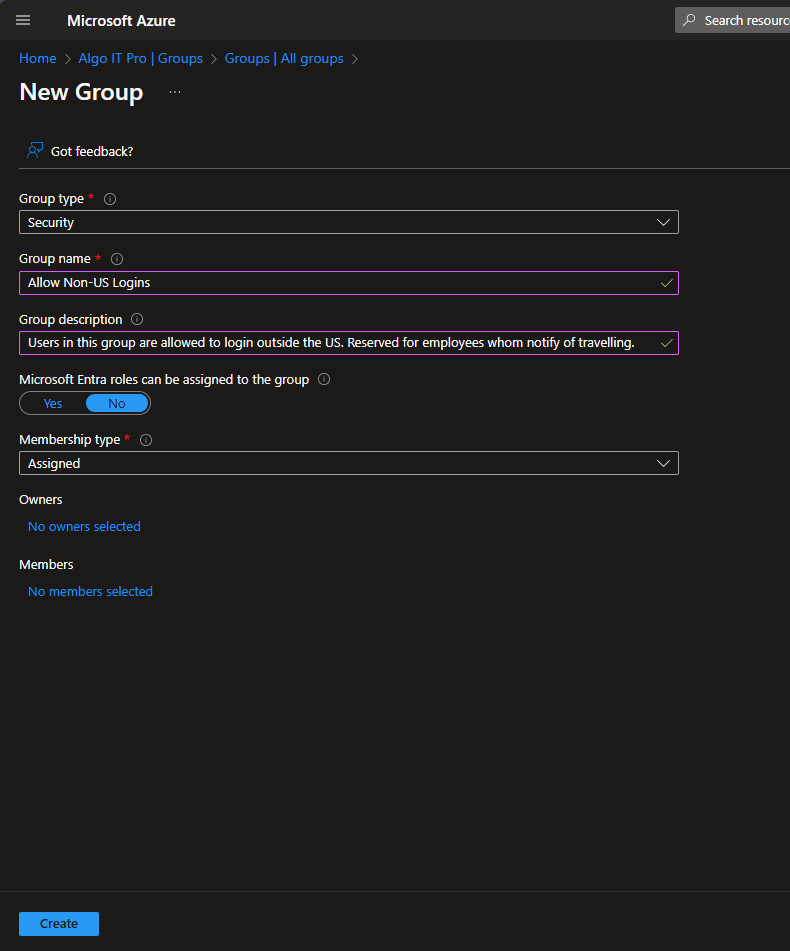
Create an Exception Group for the policy from Entra ID.
- Navigate to Groups > New Group.
- Group Type: Security
- Group Name: Allow Non-US Logins
- Group Description: Users in this group are allowed to login outside of the US.
- Microsoft Entra roles can be assigned to the group: No
- Membership type: Assigned
- Navigate back to the Conditional Access Portal in Entra ID.
- Select Policies from the left hand pane.
- Select New Policy.
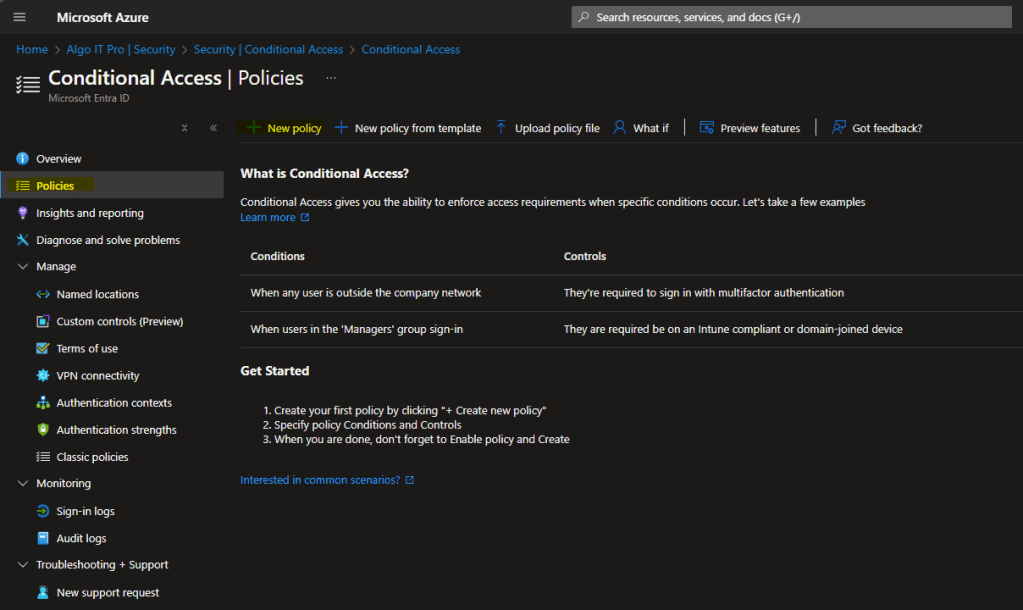
In the new policy window, under Name and Assignments enter…
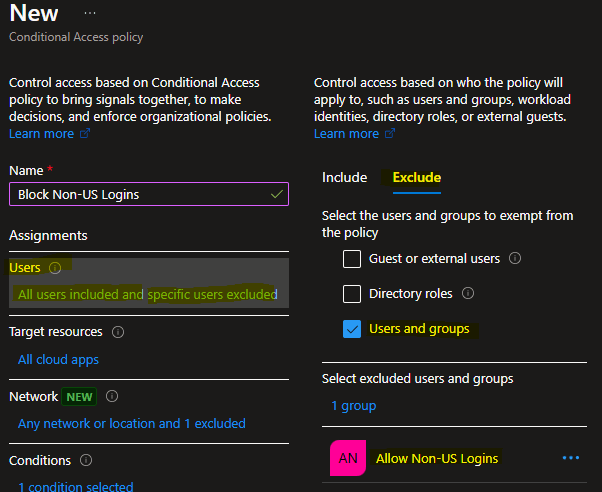
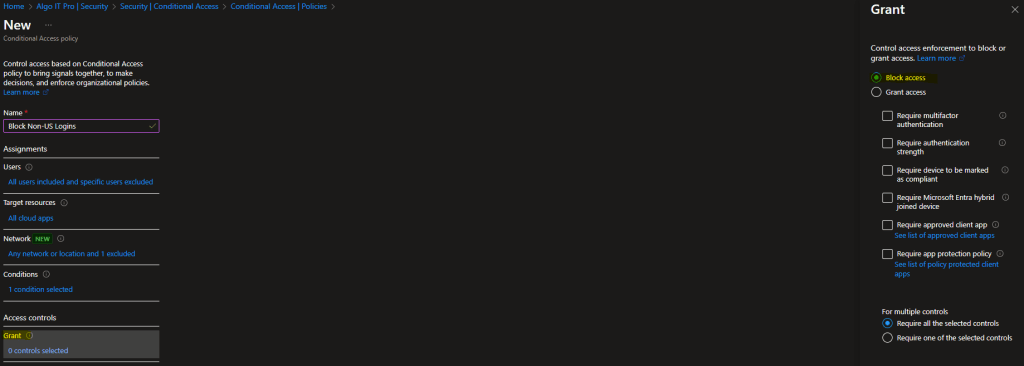
- Name: Block Non-US Logins
- Users > Include: All users
- Users > Exclude: “Name of Group made earlier”, in my case Allow Non-US Logins.
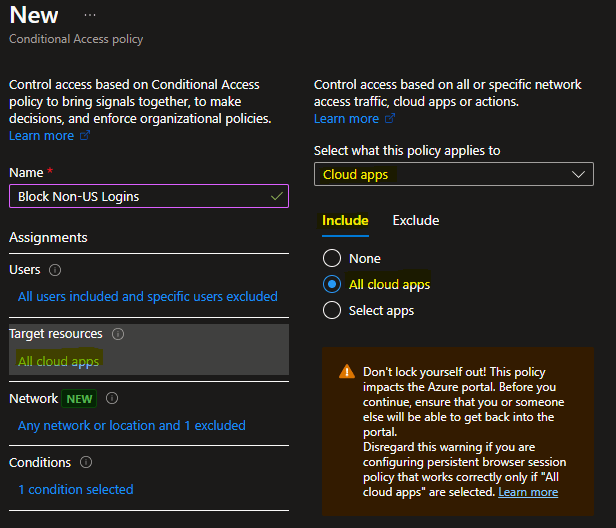
- Target resources > Include: All cloud apps
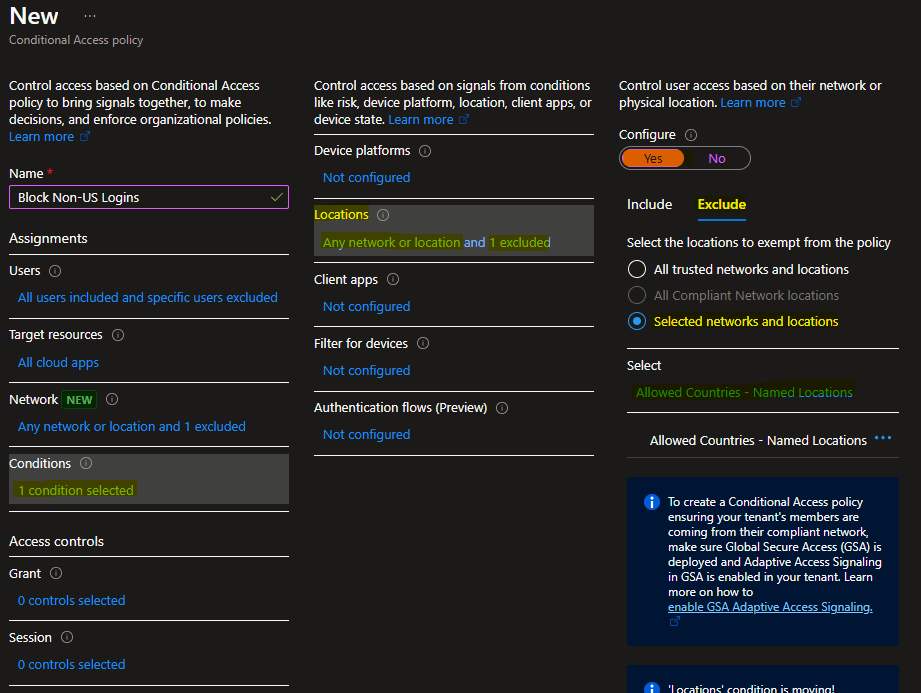
- Conditions > Locations > Configure: Yes
- Conditions > Locations > Include: Any network or locations
- Conditions > Locations > Exclude: “Name of named location setup earlier”, in my case Allowed Countries – Named Location
- Grant: Block access
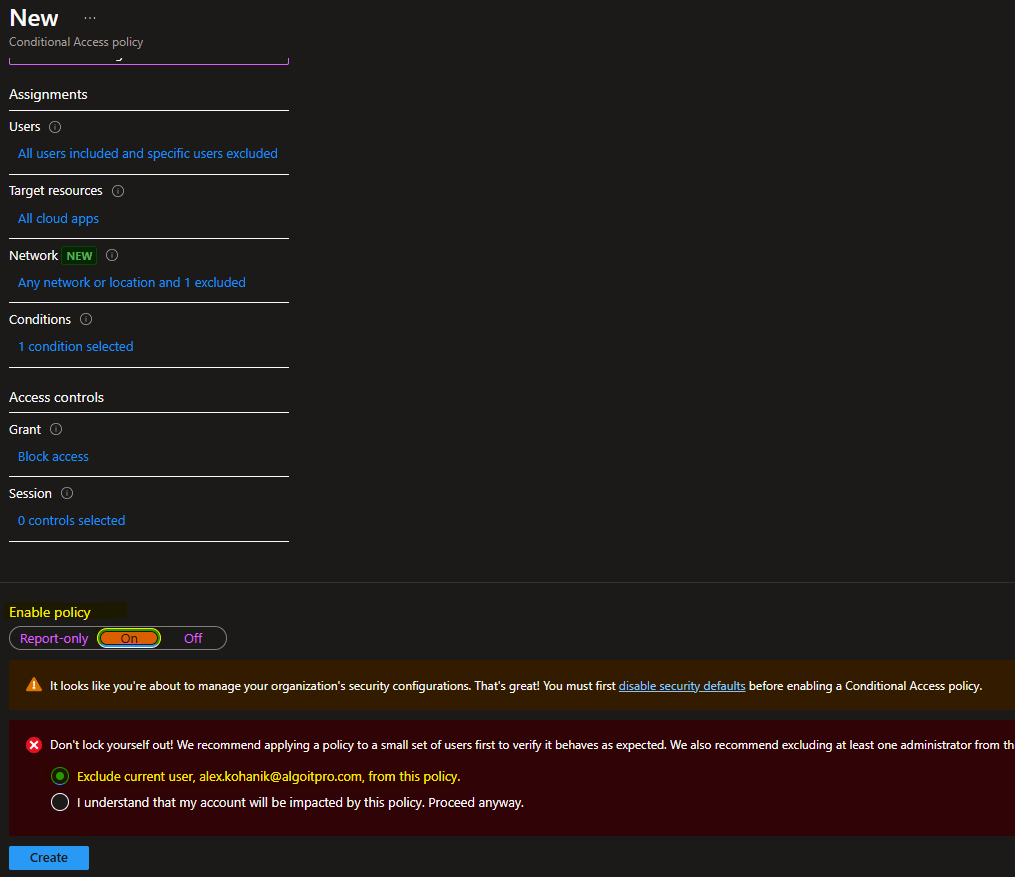
- Enable Policy: On
- When initially configuring a policy, be sure to select Exclude current user from this policy, incase anything should go wrong, you can log back in and take corrective action.
- Select Create to finish.
By implementing such policies, you can significantly reduce the risk of unauthorized access from regions where your organization does not operate. This is just one example of how Conditional Access can be used to enhance security in a practical, targeted way.
Conclusion
Microsoft’s Conditional Access is a powerful tool in the security practitioner’s arsenal. While companies face ongoing challenges, tools like these demonstrate Microsoft’s commitment to improving security across its platforms. By leveraging Conditional Access, IT administrators can take proactive steps to secure their environments, ensuring that their organizations remain safe and compliant in an increasingly complex digital landscape.

 Kohanik Secure