
Introduction
Azure VPN Gateway (AZVPNGW) Basic SKU’s must be deployed using Azure CLI. You cannot use the Azure Portal UI to deploy this SKU.
AZVPNGW Basic SKU is built upon older Azure architecture, which makes it non-zone aware and less redundant. Also, it is only deployable with the Basic SKU Public IP Addresses (PIP). Basic SKU PIPs are dynamic and cannot be static, creating another potential issue, but we’ll go over how to resolve this.
While there are these downsides, AZVPNGW Basic SKUs are an inexpensive option for cloud connectivity. Taking a look at the AZVPNGW Pricing SKUs below, you can see the large pricing & feature differences…
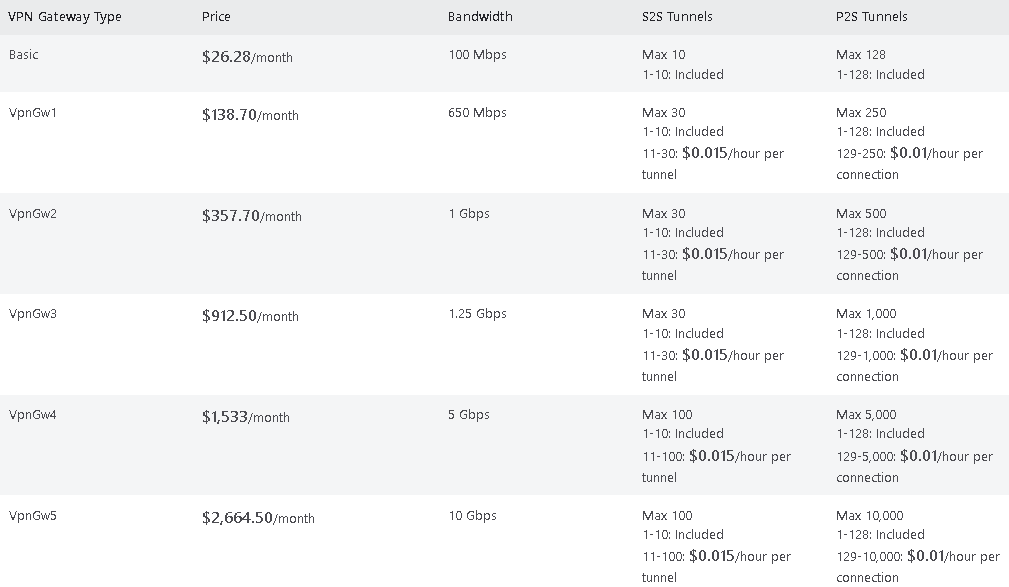
Low costs make AZVPNGW Basic SKU’s ideal for home use and small business use to obtain direct and secure cloud connectivity to leverage Azure’s service offerings. The following guide outlines the proper way to deploy a Basic SKU AZVPNGW.
Pre-req’s
- Install Azure PowerShell (PS) Module (or optionally use the Web CLI in the Azure portal UI)
- To determine if Azure PS Module is already installed, launch PowerShell and run…
Get-InstalledModule -Name Az*- If not installed simply run…
Install-Module -Name Az -Scope CurrentUser -Repository PSGallery -Force- Then login by running…
Connect-AzAccountSTEP 1: Provision dependent resources

Resource Group
$rg = New-AzResourceGroup -Name rg-az-lab-vpn -Location EastUS
Virtual Network
$virtualnetwork = New-AzVirtualNetwork -ResourceGroupName rg-az-lab-vpn -Location EastUS -Name vnet1 -AddressPrefix 10.1.0.0/16
Subnet
$subnetConfig = Add-AzVirtualNetworkSubnetConfig -Name snet1 -AddressPrefix 10.1.0.0/24 -VirtualNetwork $virtualnetworkSet Subnet on Virtual Network
$virtualnetwork | Set-AzVirtualNetworkCreate Gateway Subnet
$vnet = Get-AzVirtualNetwork -ResourceGroupName rg-az-lab-vpn -Name vnet1$gatewayConfig = Add-AzVirtualNetworkSubnetConfig -Name 'GatewaySubnet' -AddressPrefix 10.1.255.0/27 -VirtualNetwork $vnet$vnet | Set-AzVirtualNetwork
Public IP Address
$gwpip = New-AzPublicIpAddress -Name "pip-vpngw-1" -ResourceGroupName "rg-az-lab-vpn" -Location "EastUS" -AllocationMethod Dynamic -Sku Basic -DomainNameLabel <dnsnamehere>NOTE: Ensure to add a Domain Name Label, since this IP is dynamic it may change, your DNS name won’t change. This will be useful later on for P2S/S2S VPN connections.
Gateway ip configuration
$vnet = Get-AzVirtualNetwork -Name vnet1 -ResourceGroupName rg-az-lab-vpn$subnet = Get-AzVirtualNetworkSubnetConfig -Name 'GatewaySubnet' -VirtualNetwork $vnet$gwipconfig = New-AzVirtualNetworkGatewayIpConfig -Name gwipconfig -SubnetId $subnet.Id -PublicIpAddressId $gwpip.IdStep 2: provision the vpn gateway
vpn gateway
New-AzVirtualNetworkGateway -Name vpngw-lab-test-1 -ResourceGroupName rg-az-lab-vpn -Location "East US" -IpConfigurations $gwipconfig -GatewayType "Vpn" -VpnType "RouteBased" -GatewaySku Basicstep 3: Verify
Azure Portal
Navigate to resource group where VPNGW was deployed…& verify provisioning succeeded as desired…

Azure cli
Input…
Get-AzVirtualNetworkGateway -Name vpngw-lab-test-1 -ResourceGroupName rg-az-lab-vpnOutput…

troubleshooting
TIP: If any commands ever give you trouble in AzureCLI, you can view their usage and required paramaters/syntax by using the “-?” flag. For example…
Get-AzVirtualNetworkGateway -?Or..
New-AzVM -?Conclusion
Now what’s next? You’ll want to proceed with setting up either a site-to-site (S2S) VPN or a point-to-site (P2S) VPN. S2S connections are tunnels connecting your virtual networks (VNET(s)) directly to your on-premise network. P2S connections are traditional VPN clients connecting your laptop/desktop to your VNET’s. For Azure VPNGW Basic SKU, P2S clients are certificate authentication only. S2S connections have non-customizable IKE parameters. For more specific details on Basic SKU S2S VPN setups, check out additional articles on my site.
If you’d like to learn more or need help deploying Azure VPN Gateway’s in your environment, feel free to reach out to AlgoITPro for consulting and implementation services.

 Kohanik Secure