

Introduction
TP-Link is cheap and affordable, and their Omada software defined networking (SDN) makes things easy. This makes it attractive to SMBs and home users. But TP-Link’s lack of features is far from ideal as your network or business begins to mature.
Site-to-site VPNs on TP-Link firewalls are usually straightforward, but when it comes to specific instances it can be a hassle. This is the case when configuring connectivity with Azure VPN Gateway’s (AZVPNGFW) Basic SKU. As discussed in the other article, here, Basic SKU AZVPNGW is required to use a dynamic Public IP Address (PIP), and in most cases your TP-Link may be also. So, after configuring Dynamic DNS (DDNS) on both ends, you can proceed with setting up the site-to-site VPN (S2SVPN).
AZVPNGW Basic SKU IKE parameters are non-customizable and do not translate well into a TP-Link ER605 IPSec Tunnel Policy setup. The below guide goes over…
- Where to download & view Azure VPNGW Basic SKU IKE parameters
- Exact matches required on TP-Link ER605
- ER605 UI pitfalls (Phase 1/2 mappings)
- Troubleshooting S2SVPN’s on TP-Link ER605 & AZVPNGW Basic SKU
For assistance setting up DDNS on both ends or setting up AZVPNGW Basic SKU, check out my other articles:
- Azure VPN Gateway Basic SKU Site-to-Site VPN with Dynamic Public IPs (DDNS & DNS Guide)
- Azure VPN Gateway Basic SKU: Step-by-Step Setup + Troubleshooting
Pre-req’s
Other (expected)
- Azure VPN Gateway (AZVPNGW)
- Public IP Address (PIP) dynamic
- DNS Name configured
- Public IP Address (PIP) dynamic
- TP-Link ER605
- Public IP Address (PIP) dynamic
- DDNS configured
- Public IP Address (PIP) dynamic
View Azure VPNGW Basic SKU IKE parameters

PS Method
- Assign $RG variable as resource group name the connection is within
$RG = "<resourcegroupName>"- Assign $Connection variable as connection name
$Connection = "<s2sConnectionName>"- Run Get VPNGW config for this connection, adjust file path to an adequate place to save the info.
Get-AzVirtualNetworkGatewayConnectionVpnDeviceConfigScript -Name $Connection -ResourceGroupName $RG -DeviceVendor "Generic Samples" -DeviceFamily "Device Parameters" -FirmwareVersion "Generic-Samples-Device-Parameters" | Out-File -FilePath "C:\temp\vpn-config-params.txt"Portal UI method
- Navigate to your “Connection” resource in Azure
- Atop the “Overview” tab select “Download configuration”
- In the pop-up right-hand pane enter these options:
- Device Vendor: Generic Samples
- Device Family: Device Parameters
- Firmware Version: Generic-Samples-Device-Parameters
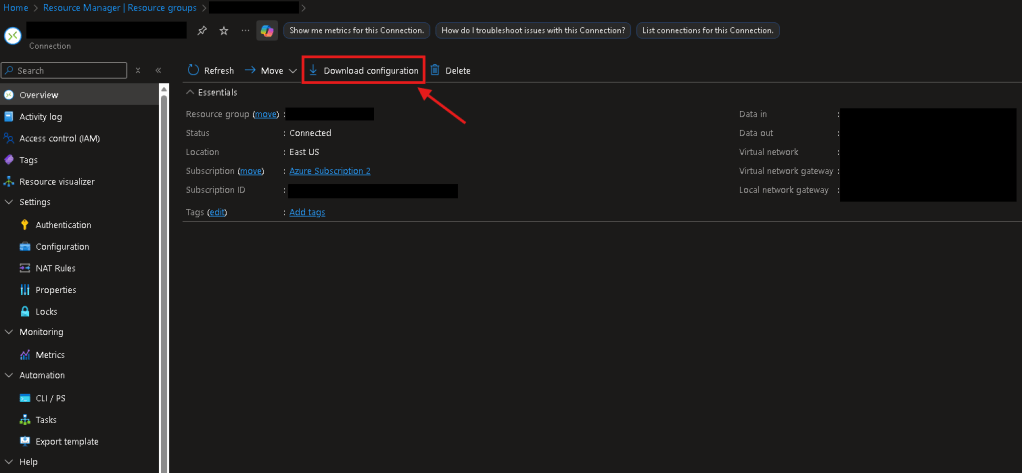
Config file info
The config file contains all information regarding the VPN connections parameters. Since you couldn’t set or initially see some parameters on the Basic SKU VPN, review these closely to ensure that you proceed correctly when configuring the IPSec policy on-prem.
- Note the IKE parameters on a Basic SKU VPN are in section 2, listed as…
- IKEv2
- P1
- Encryption: AES-256
- Integrity: SHA1
- DH Group: 2
- SA Lifetime: 3600
- P2
- Encryption: AES-256
- Integrity: Blank?
- PFS: None
- SA Lifetime: 3600
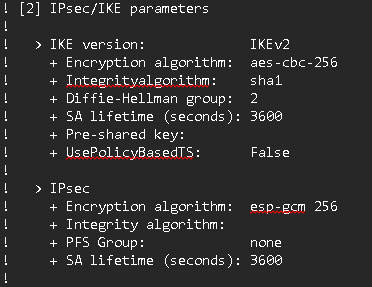
TP-Link er605 IPsec mappings
ipsec policy setup
- Basic setup notes
- Mode: LAN-to-LAN
- Remote Gateway: FQDN or PIP of AZVPNGW
- Local Network: Corresponding networking object of IPAddressPrefix you’ve set on the local network gateway in Azure.
- Remote Subnet: MUST be entire VNET address space prefix. Note that this is what’s broadcasted in the AZVPNGW Connection config file. You can control/limit the access using on-prem ACL rules & VLANs.
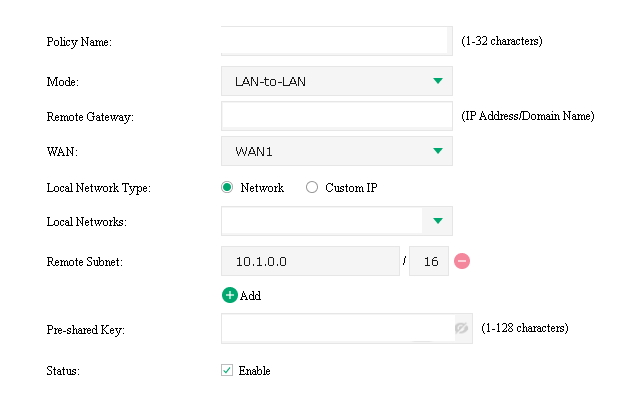
- P1 Mappings
- IKE Version: IKEv2
- Proposal(s): SHA1-AES256-DH2
- Negotiation Mode: Initiator
- SA Lifetime: 3600
- DPD: 45
- Azure vs. TP-Link parameters are entirely out of order from what you’d anticipate. TP-Link does not tell you specifically what is what, like Azure does.
- Why is DH group 2 missing? SHA1 must be selected or else DH2 is unavailable.
- DPD can be found in the AZVPNGW config ensure its set to 45 seconds.
- Azure lists phase 1 as aes-cbc-256 & sha1.

- P2 Mappings
- Encapsulation Mode: Tunnel Mode
- Proposal(s): ESP-SHA1-AES256
- PFS: None
- SA Lifetime: 3600
- Azure lists P2 as esp-gcm-256, that is all.
- Why do we select SHA1? This parameter wasn’t listed but corresponds with P1 parameters.

troubleshooting: Vpn log options
Azure side
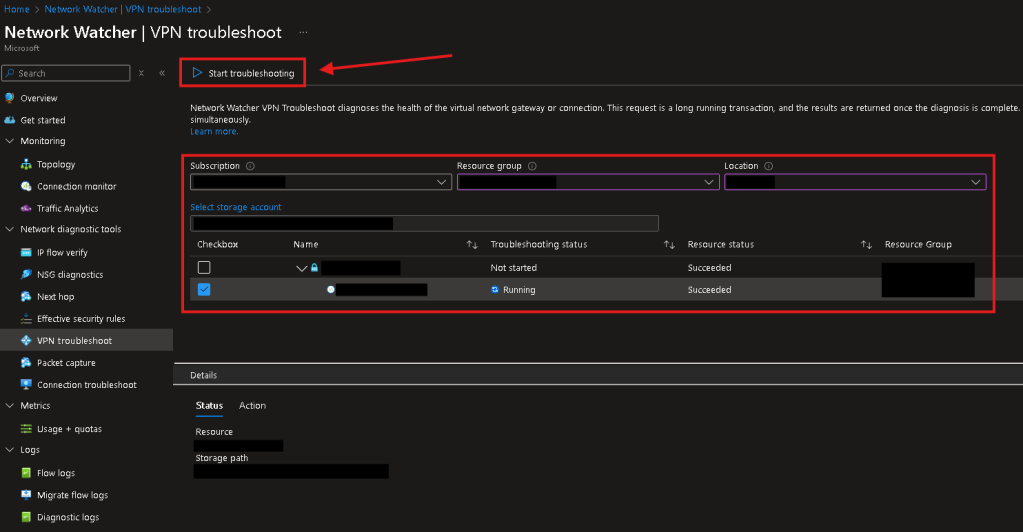
- Network Watcher – VPN Gateway Troubleshoot
- Navigate to the Network Watcher in Azure Portal UI
- On the left-hand pane under “Network diagnostic tools” > Select “VPN Troubleshoot”
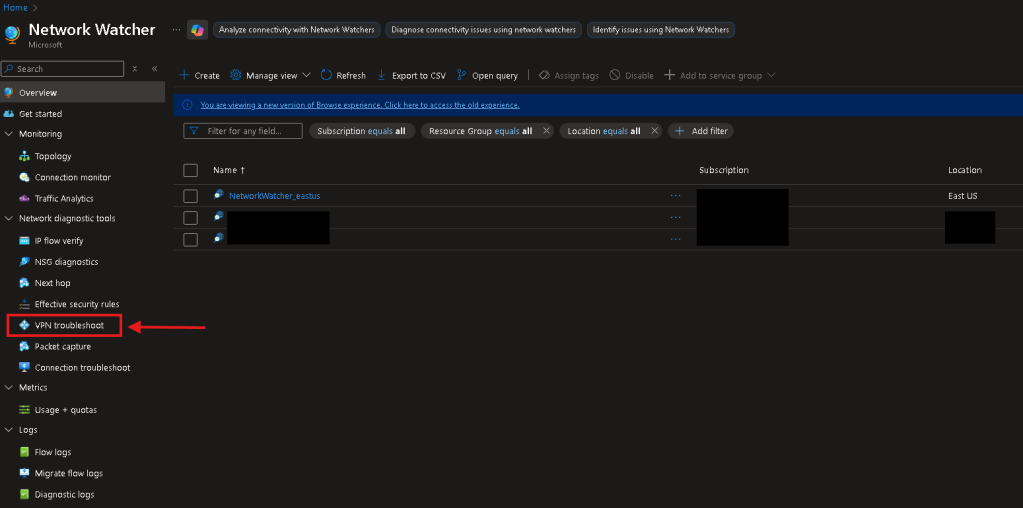
- Select your VPNGW & Start troubleshoot
- Select your subscription, resource group, and location where the VPNGW is located.
- Select a storage account to save the logs to.
- Check the box next to your connection you want to see the IPSec logs of.
- Lastly click ‘Start troubleshooting’ atop the page to begin. You should see the ‘Troubleshooting status’ change to ‘Running’.
- Reading the logs
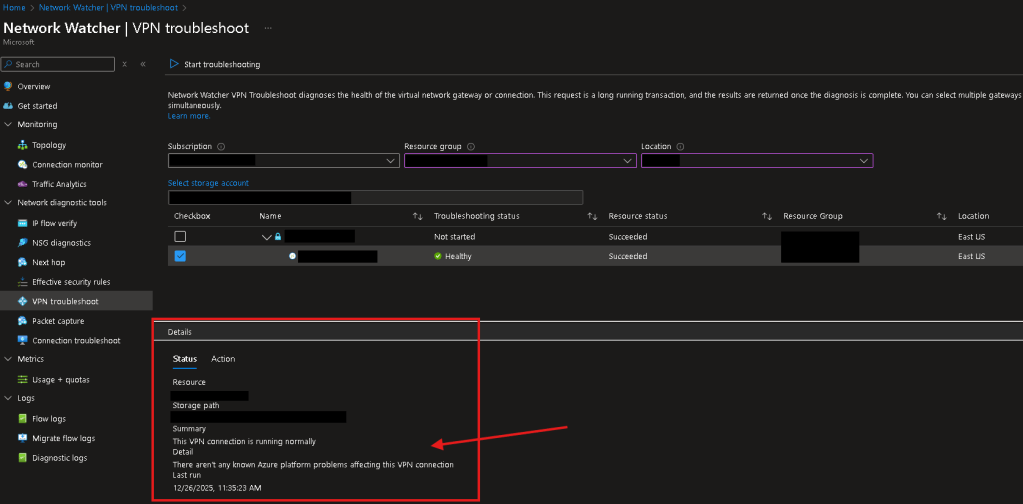
- Once completed, the status will change to either Healthy or Issues, you can view the summary at the bottom of the page…
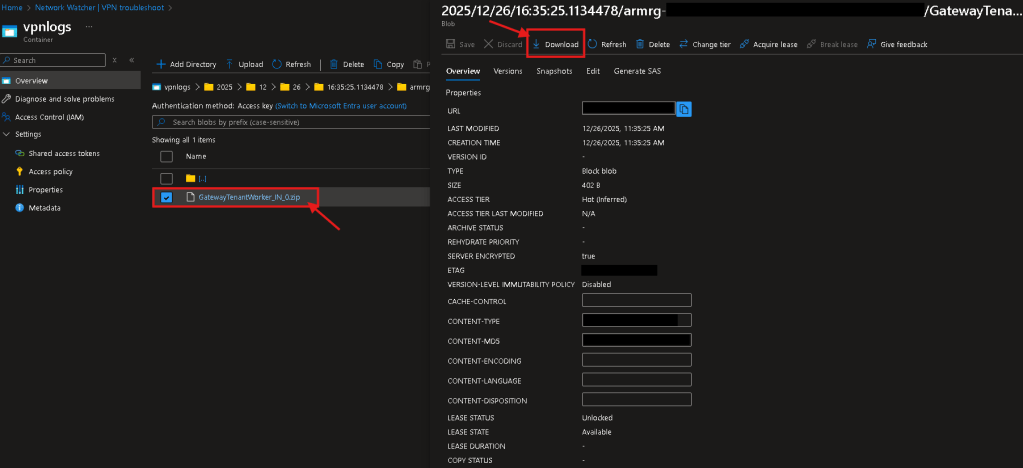
- To view the exact logs
- Navigate to your storage account container using storage browser.
- Go to the specifc dated folder the troubleshooting ran & select the “GatewayTenantWorker.zip” file > Hit “Download”.
- Extract the .zip file and inside you can find IPSec/IKE logs and other associated connection stats.
TP-link side
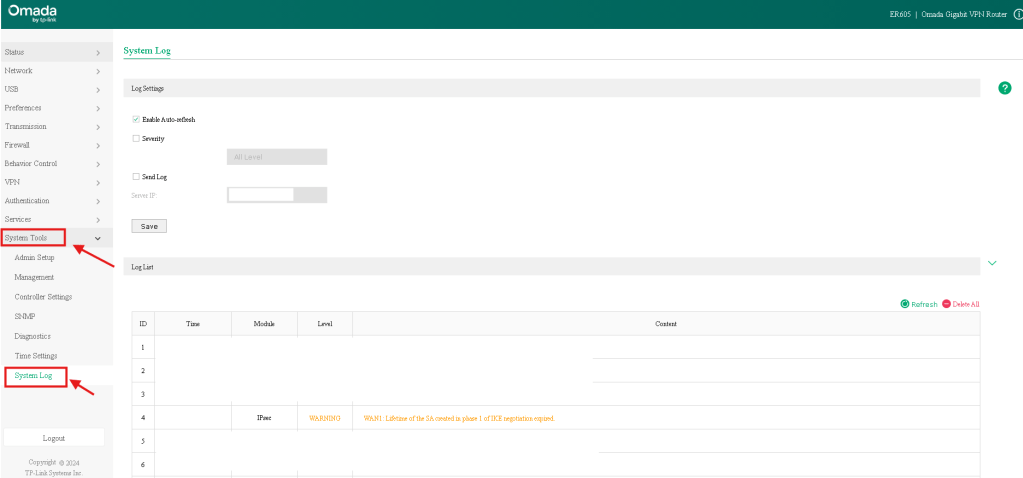
- System Logs
- Under “System Tools” > “System Log” you can find a running feed of logs.
- Look for ‘Warning’ level logs associated with ‘IPSec’
- Common error to look out for…
- Phase 1 IKE negotiation failure.
- Verify your IKE Phase 1 parameters.
- Verify your subnet’s/address prefixes are correct on both ends.
- Phase 1 IKE negotiation failure.

Conclusion
Azure’s Basic SKU uses fixed, non-negotiable settings that don’t map cleanly to the ER605 UI, and TP-Link’s limited logging makes small mismatches hard to diagnose. By pulling the enforced parameters directly from Azure, understanding how they translate into TP-Link’s Phase 1 and Phase 2 options, and avoiding common UI pitfalls, you can establish an IPSec tunnel, even with the dynamic public IPs using DDNS and FQDNs.
For assistance setting up DDNS on both ends or setting up AZVPNGW Basic SKU, check out my other articles:
- Azure VPN Gateway Basic SKU: Step-by-Step Setup + Troubleshooting
- Azure VPN Gateway Basic SKU Site-to-Site VPN with Dynamic Public IPs (DDNS & DNS Guide)
If you’d like to learn more or need help deploying S2S VPNs in your environment, feel free to reach out to AlgoITPro for consulting and implementation services.

 Kohanik Secure