

Introduction
At Microsoft Ignite 2025, several long-awaited features were announced. One clear trend is the shift toward cloud-only identities, which are increasingly important for remote workforces.
SMB has long been a standard for file sharing, but many modern tools like OneDrive, SharePoint, Dropbox, Egnyte offer alternative collaboration methods. Despite this, some legacy applications and workflows still depend on SMB.
In comes Azure Files. Azure File Shares are scalable SMB architecture, and with payg licensing you can start small and grow into this mature option.
However, there are important caveats around DNS resolution, remote access, and SMB authentication. In this article, we’ll walk through setting up cloud-only identity access to Azure Files and highlight key considerations…
Azure files cloud only identities setup
Client-side
- Windows Services – IP Helper & Win HTTP Proxy must be running
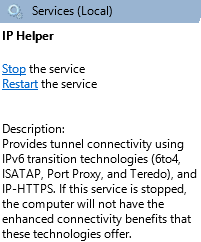
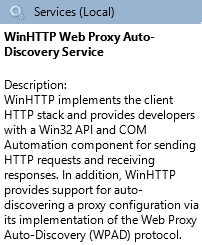
- Device must be Windows 11 Pro/Enterprise
INPUT...
(Get-ItemProperty -Path "HKLM:\SOFTWARE\Microsoft\Windows NT\CurrentVersion") | Select-Object -Property ProductName,DisplayVersion

Output...
ProductName    DisplayVersion
-----------    --------------
Windows 11 Pro 25H2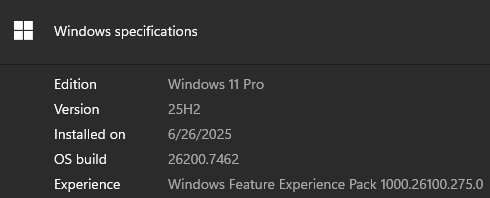
- Device must be fully cloud joined (AADJ)
INPUT...
dsregcmd /status

OUTPUT...
+----------------------------------------------------------------------+
| Device State                                                         |
+----------------------------------------------------------------------+

             AzureAdJoined : YES
          EnterpriseJoined : NO
              DomainJoined : NO
           Virtual Desktop : NOT SET
               Device Name : azurefiles-test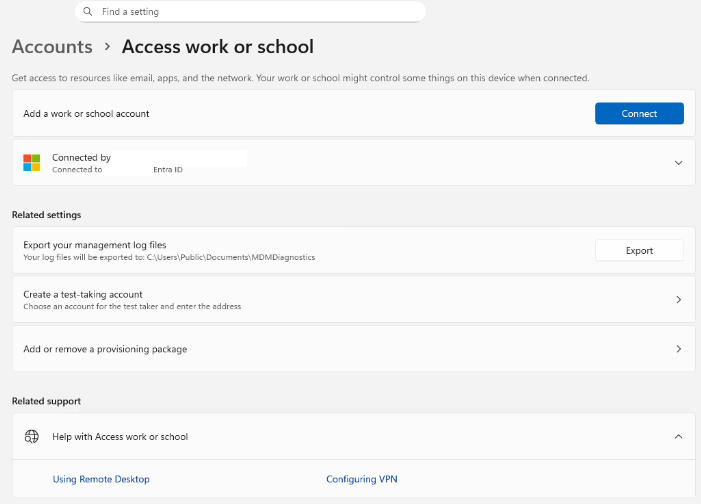
- Entra Kerberos ticket issuance must be enabled & the logged in user must be a cloud-only identity
- Can be enabled via GPO, regedit, or Intune
- NOTE: Kerberos ticket issuance can take some time and you should sync the PC then reboot to ensure the change is applied. I’ve found that no ticket really gets issued until you attempt to map the drive, which we’ll go over in the next part so continue reading…
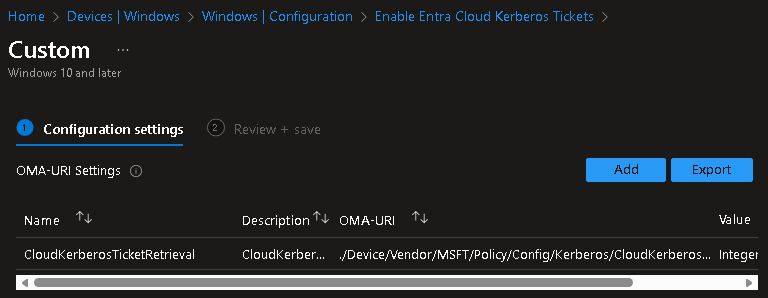
OMA-URI: ./Device/Vendor/MSFT/Policy/Config/Kerberos/CloudKerberosTicketRetrievalEnabled
Value: Integer 1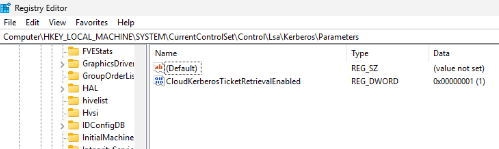
Entra-side
- A storage account & Azure Files share with only Microsoft Entra Kerberos authentication enabled.
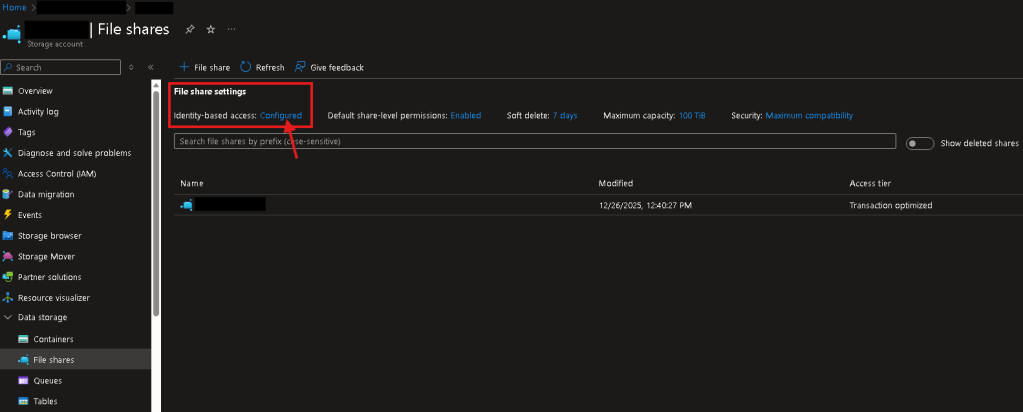
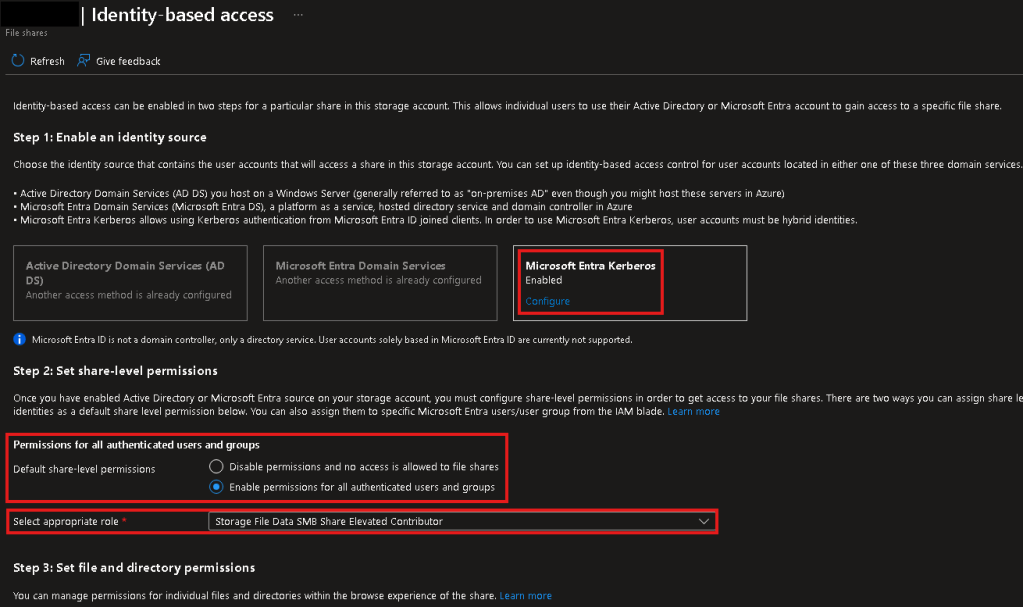
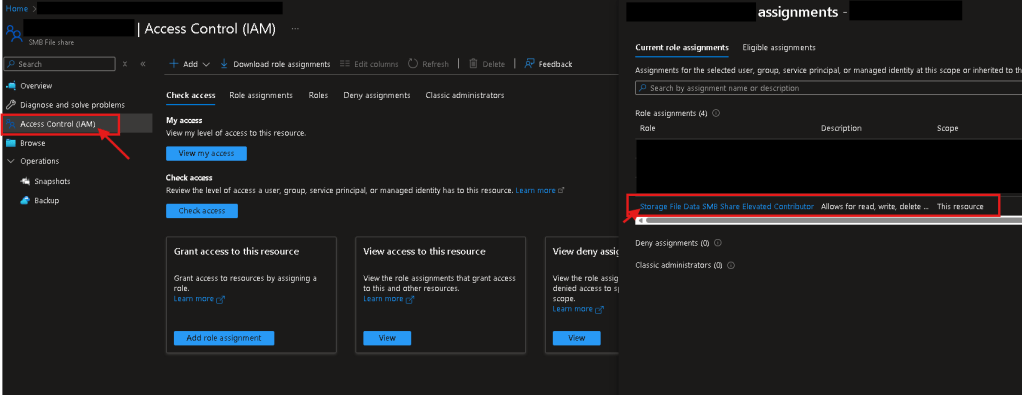
- Cloud Identity has at least one of the following IAM permissions over the share…
- SMB Share Reader
- SMB Share Contributor
- SMB Share Elevated Contributor
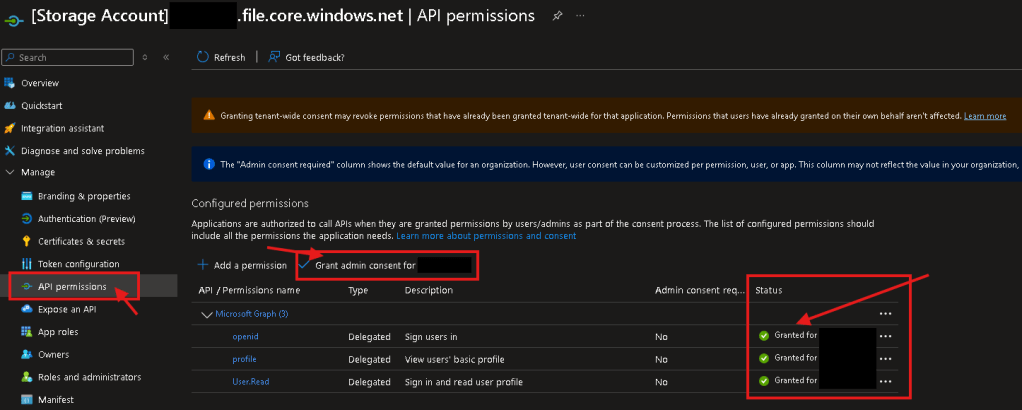
- Admin-consent over App Registration for storage account
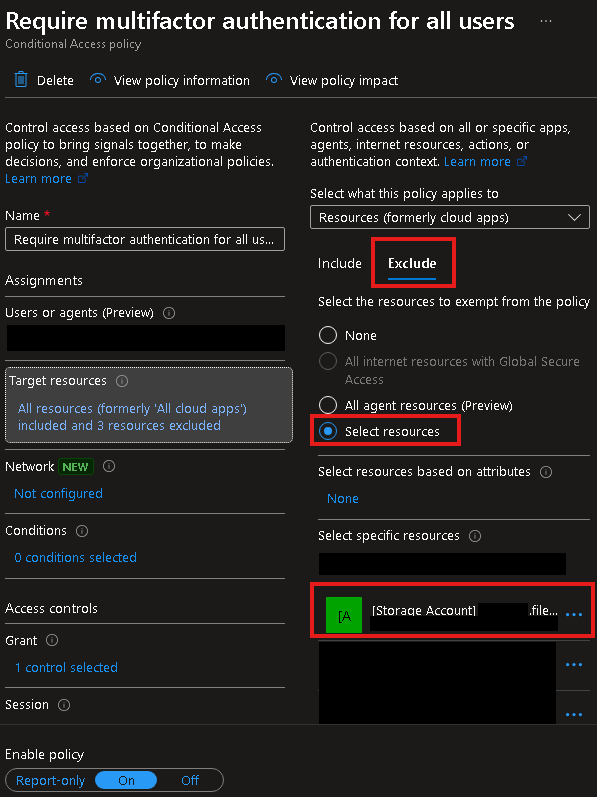
- MFA Conditional Access exclusion for Storage account App
Map a cloud drive!
- Test connectivity to the drive
- If this fails, SMB over the WAN could be getting blocked somewhere. Continue onto the next section if this occurs.
Test-NetConnection mystrgacct.file.core.windows.net -Port 445dir \\mystrgacct.file.core.windows.net\myazfilesharename- Verify Entra Kerberos ticket issuance
klist- Use net use command to map the drive
net use Z: \\mystrgacct.file.core.windows.net\myazfilesharename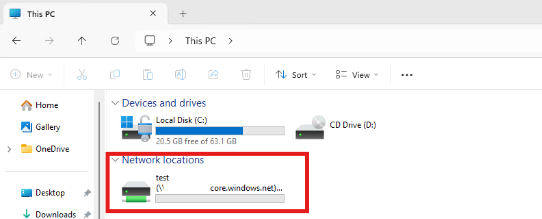
caveats
Remote Work Challenges
Using Azure Files SMB shares with a remote workforce comes with some significant hurdles. Most residential ISPs block SMB outbound (port 445), which prevents direct access over the WAN. This is a fundamental limitation you can’t bypass without moving traffic through datacenter or Azure-hosted networks.
- ISP Port 445 blocking list: Microsoft TechNet Archive
- Even with your own modem in bridge mode or custom firewall rules, residential ISPs typically won’t allow port 445 outbound.
Private Link + P2S VPN Limitations
You might think the solution is to use a private link on the storage account combined with a P2S VPN client. In theory, this should work, but in practice, Azure VPN Client’s DNS setup with AAD authentication is not operational.
- Azure VPN Client relies on NRPT (Name Resolution Policy Table) entries for DNS.
- NRPT entries are often ignored on home networks, and users’ routers will prefer their ISP’s DNS.
- This means that WFH users will frequently resolve the storage account’s hostname to the public IP (PIP) rather than the private link IP.
NOTE: “When using Microsoft Entra ID authentication, the Azure VPN Client utilizes DNS Name Resolution Policy Table (NRPT) entries, which means DNS servers aren’t listed under the output of ipconfig /all. To confirm your in-use DNS settings, consult Get-DnsClientNrptPolicy in PowerShell.”
REFERENCE: https://learn.microsoft.com/en-us/azure/vpn-gateway/azure-vpn-client-optional-configurations
PowerShell check: Get-DnsClientNrptPolicy
Kerberos Ticket and FQDN Resolution
Even if you get private DNS working, Kerberos introduces another restriction:
- The Azure AD Kerberos ticket is issued specifically for the share’s FQDN.
- Mapping the share using the LAN IP, a CNAME, or any other hostname will fail authentication.
- This explains why even with a local DNS server or S2S VPN, access may fail unless the client resolves the exact FQDN that matches the Kerberos ticket.
Practical Workarounds
Given these limitations, the realistic options are:
Azure DNS Resolver
- Allows remote clients to resolve the share’s FQDN to the private IP.
- Cost: ~$180/month, potentially ~$180/month per endpoint.
- Caveat still exists: Even if DNS works, residential ISPs blocking port 445 still prevents direct SMB access.
Use Azure Files only within Azure or a Datacenter
- Deploy AVD (Azure Virtual Desktop) or AADJ server-based endpoints to access shares internally.
- This avoids residential WAN issues entirely and ensures Kerberos authentication succeeds
Business / Data Center ISP accounts
- Port 445 is typically allowed.
- Ideal for remote or hosted servers, but not for residential devices.
Conclusion
Bottom Line: For WFH users, there is no “plug-and-play” solution that allows Azure AD Kerberos authentication over SMB via public WAN. Either you pay for managed DNS/resolvers, or you restrict Azure Files access to internal Azure or datacenter networks.
Additional Notes & References:
- NRPT explanation: Get-DnsClientNrptPolicy
- Azure Files Kerberos configuration: Enable Azure AD Kerberos
- SMB port 445 considerations: Port 445 connectivity
If you’d like to learn more or need help deploying Azure Files in your environment, feel free to reach out to AlgoITPro for consulting and implementation services.

 Kohanik Secure