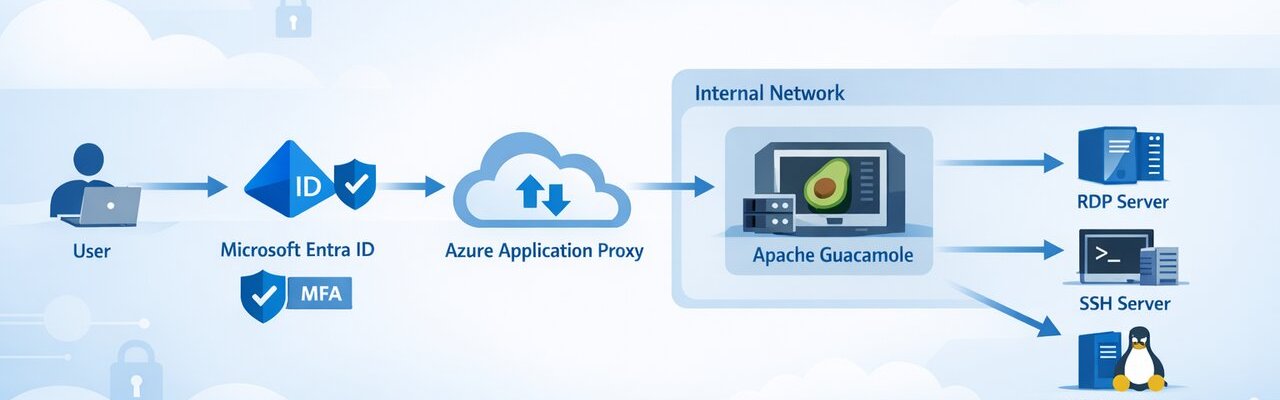

A secure alternative to VPNs and Bastion for accessing RDP and SSH resources.
Introduction
Remote access is always a challenge for organizations. Traditional options like VPNs, RDS Gateways, and third-party remote access tools often introduce security risks, complex configurations, and ongoing maintenance overhead.
Microsoft Entra Application Proxy provides a different approach. Instead of exposing services through inbound firewall rules or DMZ infrastructure, the Application Proxy connector creates an outbound reverse tunnel to Microsoft Azure, eliminating the need to open ports to the internet.
Because authentication happens through Microsoft Entra ID first, organizations can enforce Conditional Access policies, MFA, and identity-based security controls before a user ever reaches the internal application being published.
This means internal web applications can be securely exposed using a Zero Trust Network Access (ZTNA) model. One particularly powerful use case is publishing Apache Guacamole, a browser-based remote access gateway.
Apache Guacamole provides a centralized portal for RDP, SSH, and VNC access to internal systems. By combining Guacamole with Azure Application Proxy, organizations can build a secure, scalable, identity-driven remote access solution without relying on traditional VPN infrastructure.
Architecture
The architecture for this solution is fairly lightweight and can be deployed using only a few components.
Required Components
- Microsoft Entra ID P1 or P2 – Used for authentication, Conditional Access policies, and Azure Application Proxy.
- Windows Server or Windows VM – Hosts the Azure Application Proxy Private Access Connector, which creates the outbound connection to Azure.
- Linux or Windows Server – Hosts Apache Guacamole and the PostgreSQL database. In my experience, the easiest deployment method is running Guacamole with Docker, which works well on either Windows or Linux.
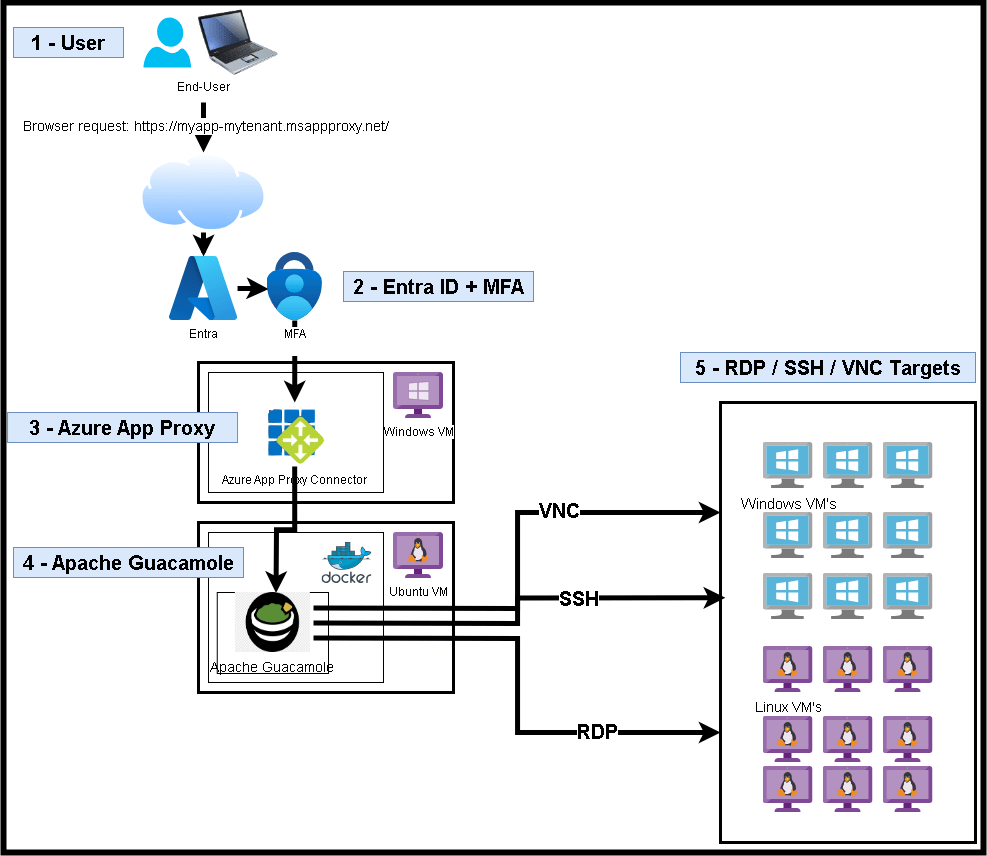
The ultimate architecture and workflow are visualized in the diagram below.
When a client or user initiates a web request to the Azure Application Proxy external URL, they are immediately redirected to Microsoft Entra ID for authentication (login.microsoftonline.com). If the user has already authenticated and selected the “remember me” option, the authentication process may occur silently using their existing session.
After successful authentication, Azure Application Proxy validates the request and forwards the traffic through the Application Proxy Connector installed on the internal Windows machine. The connector maintains a persistent outbound connection to Azure, meaning no inbound firewall ports need to be opened.
Once the request reaches the internal network, it is forwarded to the Apache Guacamole server, where the user can access configured RDP, SSH, or VNC connections through a browser-based interface.
Implementation
This implementation assumes you already have the following resources available:
- A Windows Server or Windows client VM
- An Ubuntu VM
- Internal DNS management capable of creating A records (this will become important later)
Apache Guacamole Docker Setup
On your Ubuntu VM, run the following commands.
Install Docker
sudo apt update && sudo apt upgrade -ysudo apt install ca-certificates curl gnupg -ysudo install -m 0755 -d /etc/apt/keyringscurl -fsSL https://download.docker.com/linux/ubuntu/gpg | sudo gpg --dearmor -o /etc/apt/keyrings/docker.gpgsudo chmod a+r /etc/apt/keyrings/docker.gpgecho "deb [arch=$(dpkg --print-architecture) signed-by=/etc/apt/keyrings/docker.gpg] https://download.docker.com/linux/ubuntu $(lsb_release -cs) stable" | sudo tee /etc/apt/sources.list.d/docker.list > /dev/nullsudo apt updatesudo apt install docker-ce docker-ce-cli containerd.io docker-buildx-plugin docker-compose-plugin -ySetup Guacamole
Create a working directory:
mkdir ~/guacamole && cd ~/guacamolemkdir initGenerate the Guacamole database initialization script:
docker run --rm guacamole/guacamole /opt/guacamole/bin/initdb.sh --postgres > ./init/initdb.sqlCreate the docker-compose.yml File:
services: guacd: image: guacamole/guacd container_name: guacd restart: always postgres: image: postgres:15-alpine container_name: guac-postgres restart: always environment: POSTGRES_DB: guacamole_db POSTGRES_USER: guacamole_user POSTGRES_PASSWORD: YourStrongPassword volumes: - ./init:/docker-entrypoint-initdb.d - ./data:/var/lib/postgresql/data guacamole: image: guacamole/guacamole container_name: guacamole restart: always ports: - "8080:8080" environment: GUACD_HOSTNAME: guacd POSTGRES_HOSTNAME: postgres POSTGRES_DATABASE: guacamole_db POSTGRES_USER: guacamole_user POSTGRES_PASSWORD: YourStrongPassword depends_on: - guacd - postgresStart the Containers
Start the stack with:
docker compose up -dOnce complete, verify that the Guacamole web interface is accessible locally.
Example:
http://<GuacServerIP>:8080/guacamoleAzure App Proxy Setup
Navigate to Microsoft Entra ID using your preferred method.
Go to Manage > Application Proxy, select ‘Download connector service’…
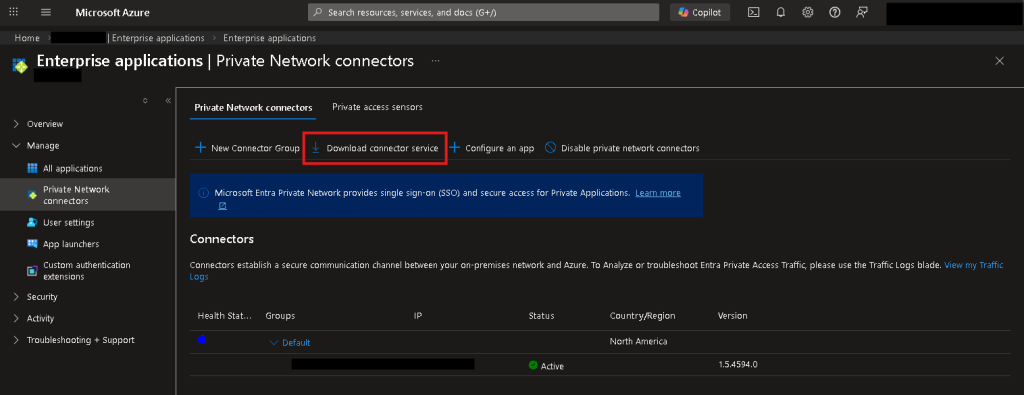
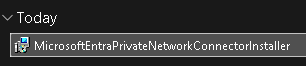
Install the connector on a Windows machine that is always running and has network connectivity to your Apache Guacamole instance.
Before proceeding, verify connectivity by opening a browser on the connector machine and navigating to:
http://<GuacServerIP>:8080/guacamoleIf the page loads successfully, the connector machine has proper connectivity.
IMPORTANT
Before Azure Application Proxy can publish the Guacamole instance, the connector server must be able to resolve the Guacamole hostname.
On the connector machine, run the following commands:
nslookup <guacServerHostname>nslookup <guacServerIP>Both queries must resolve correctly.
If they do not, review the troubleshooting section below for DNS resolution guidance.
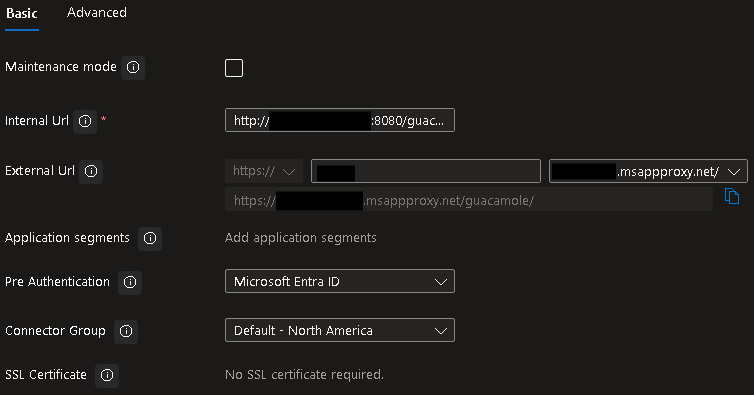
Once complete, go back to Entra > Application Proxy, and hit ‘Configure an app’…

Enter the following…
- Internal Url: http://myGuacHostname:8080/guacamole
- External Url: https://myUrl-myTenant.msappproxy.net/
- Note: when browsing to this URL externally, make sure to add the /guacamole to the end!
Leave all other settings as default or configure as you desire.
Troubleshooting – Tips
DNS Issues
If you attempt to publish the Guacamole server using its internal IP address, Azure Application Proxy will not function properly. The connector must be able to resolve a hostname to an IP address.
For example, in my lab environment I use a domain such as:
contoso.netI run OPNsense as my firewall, which allows forwarding DNS queries for specific domains to designated DNS servers.
Example workflow:
Client queries contoso.net→ OPNsense forwards request→ DNS server 10.0.0.20 resolves the recordIf this type of DNS infrastructure is not available, you can deploy a Windows DNS server and configure the Application Proxy connector VM to use it as its primary DNS server.
Long story short: if you are not actively managing DNS in your network, you should be.
Azure App Proxy Url Quirks
Both the internal and external URLs must include /guacamole.
If this path is omitted, the application will not load properly.
For example:
Incorrect:
http://myGuacIP:8080/Correct:
http://myGuacIP:8080/guacamoleThe same rule applies to the external Azure App Proxy URL.
While this behavior can be modified with additional configuration, the default deployment expects the /guacamole path.
Recommendations
After completing the installation:
- Immediately change the default guacadmin password
- Configure user groups and access control lists
- Enable Microsoft Entra Conditional Access policies
- Require MFA for all remote access sessions
These steps ensure your remote access portal remains secure.
Conclusion
By combining Apache Guacamole with Microsoft Entra Application Proxy, you can build a lightweight Zero Trust remote access solution without exposing inbound firewall ports or maintaining traditional VPN infrastructure. Authentication happens through Microsoft Entra ID, allowing organizations to enforce MFA and Conditional Access policies before users reach internal resources. This makes it a flexible option for homelabs, consultants, and organizations looking for a secure remote access gateway.
Additional Notes & References:
- Docker installation on Ubuntu: Docker Engine Installation Guide (Ubuntu)
- Apache Guacamole Docker documentation: https://guacamole.apache.org/doc/gug/guacamole-docker.html
- Microsoft Entra Application Proxy overview: https://learn.microsoft.com/en-us/entra/identity/app-proxy/overview-what-is-app-proxy
- Publishing an on-premises application with Application Proxy: https://learn.microsoft.com/en-us/azure/active-directory/app-proxy/application-proxy-add-on-premises-application
- Application Proxy security considerations: https://learn.microsoft.com/en-us/entra/identity/app-proxy/application-proxy-security
- Microsoft Entra Conditional Access overview: https://learn.microsoft.com/en-us/entra/identity/conditional-access/overview
If you’d like help designing secure remote access solutions using Microsoft Azure and Microsoft Entra ID, feel free to reach out to Algo IT Pro LLC for consulting and implementation services.

 Kohanik Secure